How do I connect my email account to SEO PowerSuite?
If you create a Publishing Profile in any of the SEO PowerSuite apps, you'll need to connect an email account to send the access link or attach a PDF report. If you're using the Emailing module in LinkAssistant, you'll also need to connect your email account to send and receive emails.
You can choose between 2 account types: IMAP & POP3
To connect the account successfully, you'll need to:
- make sure that POP is enabled in your account settings (if choosing to fetch email via POP)
- check with your email service provider on the exact settings to be used in a third-party app (servers, ports, security settings)
Note: starting from January 2026, fetching emails from third-party accounts into your Gmail account, with POP, will no longer be supported.
You can use any email account that is allowed to be used by third-party email clients. Below are the common settings that work for Gmail and Yahoo! Mail (paid accounts only).
Connecting a Gmail account
- Log into your Google account: https://myaccount.google.com/
- Switch to the Security section - 2-Step verification:
Note: If your 2-Step verification is not switched on yet, you will have to enable it to be able to generate an application-specific pass. App Passwords can only be used with accounts that have 2-Step Verification turned on.
- Scroll down the page and click on App Passwords menu at the bottom:
- Generate a specific password for any of the SEO PowerSuite apps (you need to add the app's name and then click the 'Generate' button):
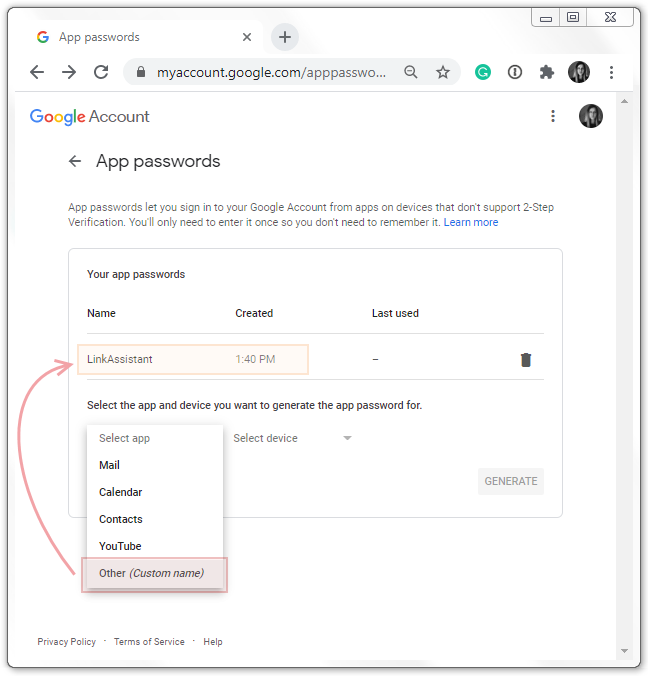
- Save the password (you will not be able to open or edit it later in your Google account);
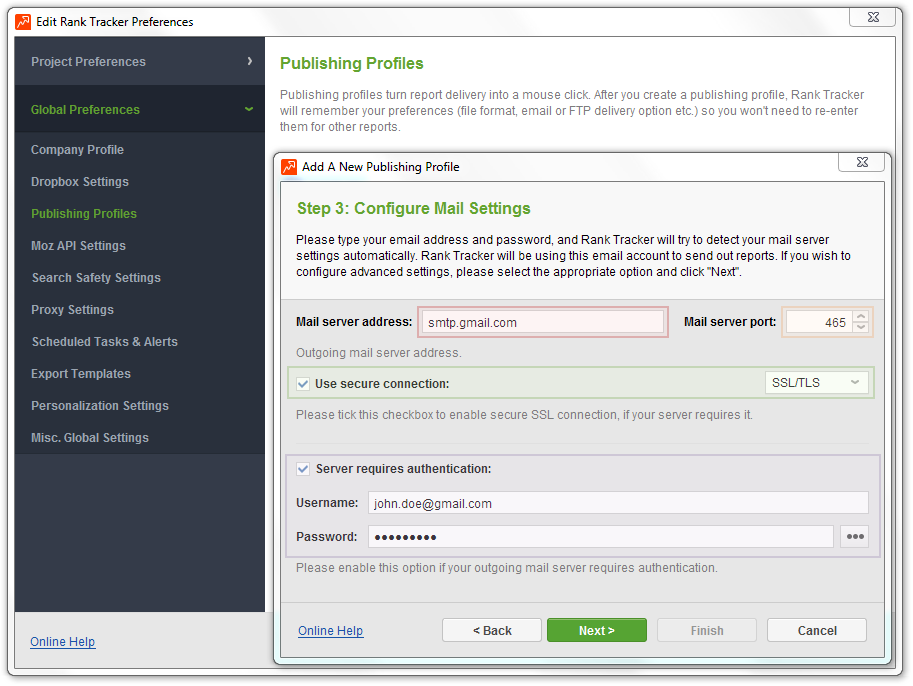
- Go to SEO PowerSuite apps, use the following settings when setting up a Publishing Profile:
Mail Server Address: smtp.gmail.com
Server Port: 465
Use Secure connection: ON (SSL/TLS)
Server requires authentication: ON (your Gmail username and app-specific password)
In LinkAssistant Email Client, you'll also need the Incoming Mail Settings:
- Incoming Mail Server: imap.gmail.com
- Server Port: 993
- Use Secure connection: ON
- POP3 Username: your Gmail username
- POP3 Password: your app-specific password
For Outgoing Mail settings, use POP3/IMAP account settings (check the option):
- Mail Server Address: smtp.gmail.com
- Server Port: 465
- Use Secure connection: ON (SSL/TLS)
- Server requires authentication: Use POP3/IMAP account settings
Connecting a Yahoo! Mail account
Just so you know, free Yahoo! accounts are not compatible with third-party mail clients - the feature is exclusive for paid Yahoo! Mail account owners.
In the SEO PowerSuite apps, use the following settings when setting up a Publishing Profile:
- Outgoing Mail Server: smtp.mail.yahoo.com
- Server Port: 465
- Use Secure connection: ON (SSL/TLS)
- Server Requires Authentication: checked (Use POP3/IMAP account settings)
- Use POP3/IMAP Before SMTP Authentication: OFF
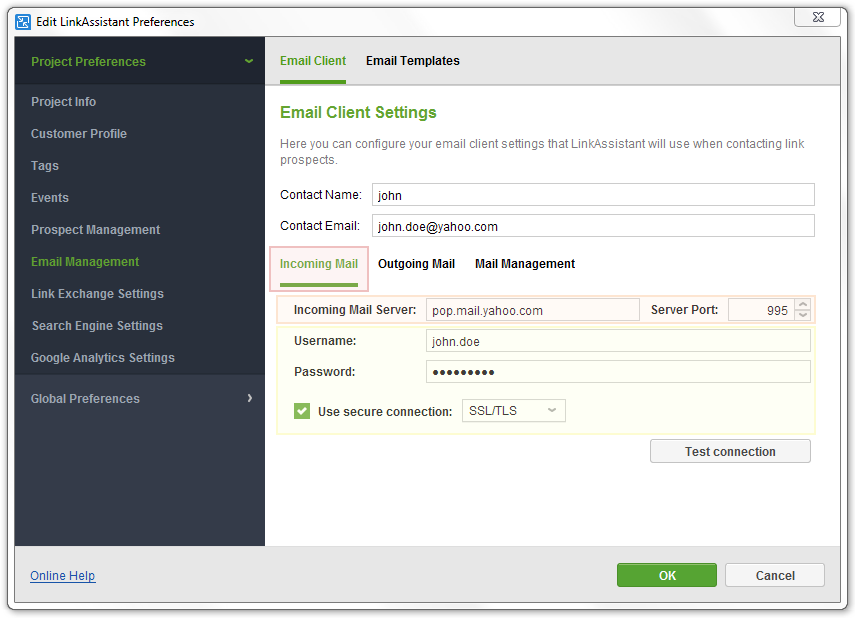
In LinkAssistant Email Client, you'll also need the Incoming Mail Settings:
- Incoming Mail Server: pop.mail.yahoo.com (or imap.mail.yahoo.com depending on your settings)
- Server Port: 995 (993)
- Username: your Yahoo! Mail Plus ID (your email address without the @yahoo.com part)
- Password: your Yahoo! Mail Plus password
- Use Secure connection: ON (SSL/TLS)
Comments
0 comments
Please sign in to leave a comment.